How to Convert Thanksgiving PNG to SVG for Cricut
StudioSVG Team · October 31, 2026 · 5 min read
When Thanksgiving approaches, our crafting tables get busy with personalized place cards, thankful banner scrolls, and customized hosting aprons. If you want to convert thanksgiving png to svg for cricut without ending up with jagged, pixelated cut lines, you are in the right place. Working with high-resolution vector files changes everything about your holiday crafting experience, saving you from frustrating weeding sessions and torn materials.
Standard image formats like PNG and JPEG are made of tiny colored pixels. When you try to cut them on a cutting machine, your software tries to trace the jagged edges of those pixels, resulting in frustrating cuts that tear your cardstock or ruin your vinyl. Vector graphics use math instead of pixels, creating smooth, crisp paths that your machine follows effortlessly. Let us walk through the exact process of turning your holiday images into clean, cut-ready vector files.
Why Thanksgiving PNG Files Need to Be Converted to SVG for Cricut
When you bring a raster image directly into Cricut Design Space and use the automatic background remover, the result often depends entirely on the resolution of the original file. Low-resolution downloads create bumpy edges and stray nodes that cause your blade to stutter. By converting your file into a true vector before uploading, you gain absolute control over the lines, shapes, and layers.
Vector files also allow you to resize your artwork infinitely without losing any quality. Whether you want to put a small design on a cloth napkin or scale it up for a large wooden front porch sign, the lines remain sharp and clean. This preparation step saves you time, material waste, and the headache of weeding complex, pixelated vinyl.
How to Convert Thanksgiving PNG to SVG for Cricut Using Free Tools
You do not need expensive design software or a complicated learning curve to prepare your holiday files. Using dedicated web-based conversion utilities makes the transition fast and reliable. Here is how you can use the PNG to SVG for Cricut tool to prep your holiday graphics:
- Save your Thanksgiving image in a clear PNG format with high contrast between the subject and the background.
- Navigate to create.studiosvg.com and upload your saved image file directly into the browser window.
- Adjust the path settings if your design has fine details, ensuring that solid shapes remain filled and open lines stay crisp.
- Process the conversion and review the preview to make sure all elements look sharp and smooth.
- Download the final SVG file directly to your computer, ready for use in your cutting software.
If you have multi-colored artwork that needs sorting into individual cuts, you can also run your holiday graphics through the Layered SVG maker to separate different color fields automatically.
Uploading and Preparing Your Clean SVG in Cricut Design Space
Once your file is saved as a clean vector, bringing it into your cutting software is straightforward. Open a new project on your canvas, click the upload button, and select your newly converted file. Because the file is already a true vector, you will likely notice that the background is transparent and the cut lines are smooth right from the start.
Take a moment to check your layers panel on the right side of the screen. If your Thanksgiving design contains multiple colors or distinct elements, they will often load as separate cut layers. You can use the group, ungroup, and attach functions to organize your layout before sending the project to your machine. Always do a quick test cut on scrap cardstock or scrap vinyl if you are working with an intricate font or delicate scrollwork.
Choosing the Right Thanksgiving Cut Files for Your Holiday Projects
While converting your own images is a great skill, sometimes you want ready-to-cut professional artwork designed specifically for holiday crafting. Exploring curated collections makes it easy to find matching motifs for your seasonal table settings. You can browse through the Fall & Thanksgiving category to find plenty of seasonal inspiration.
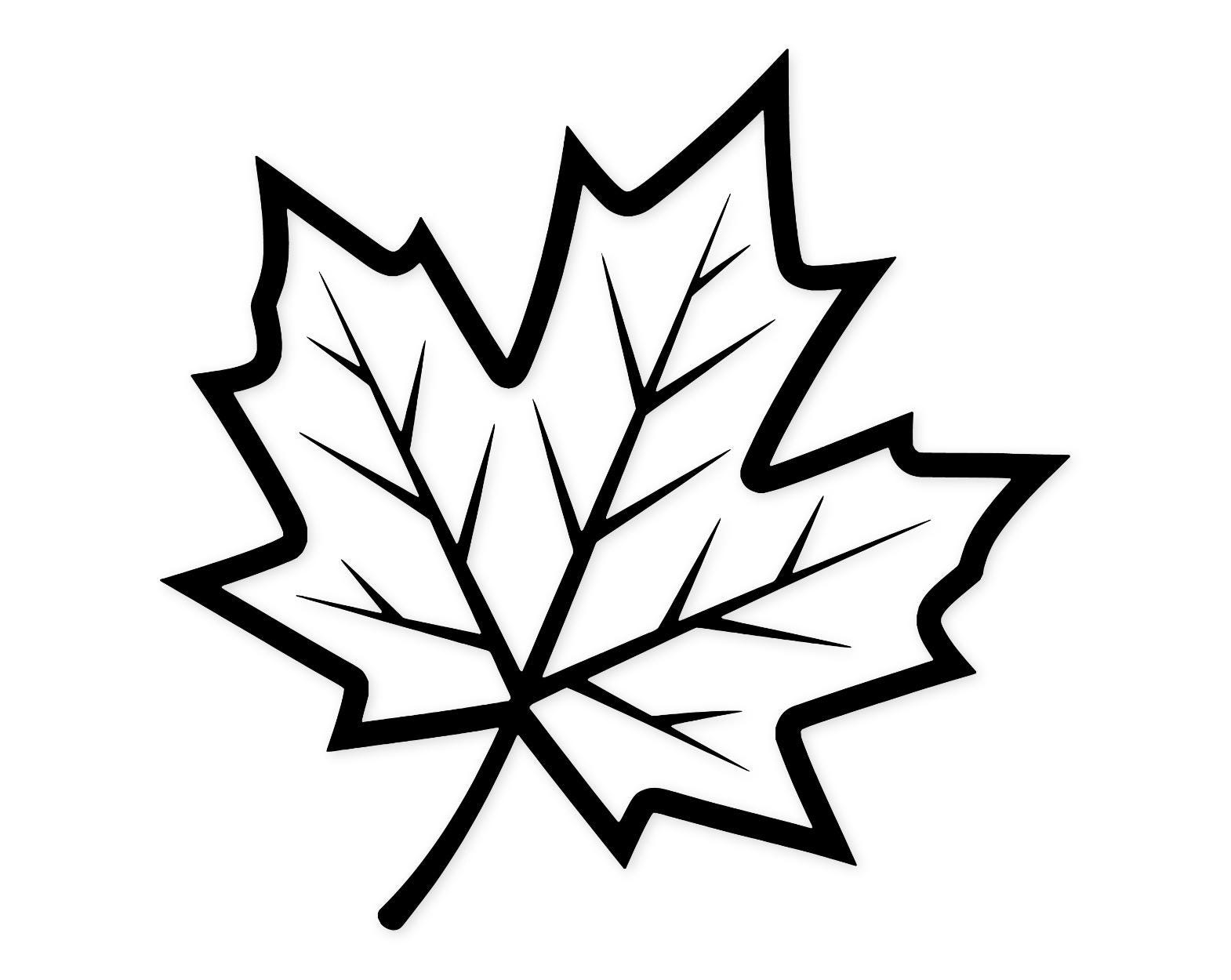
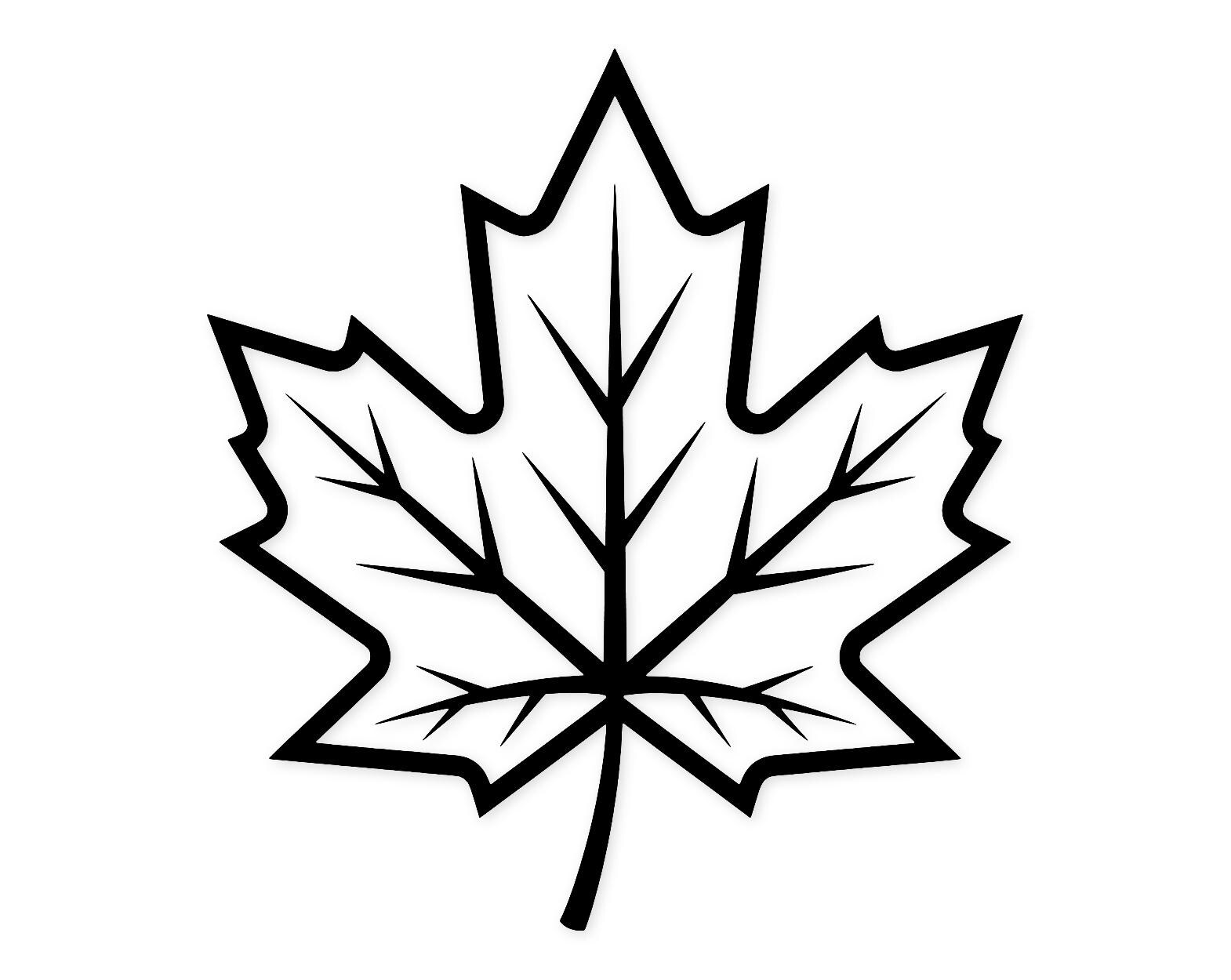
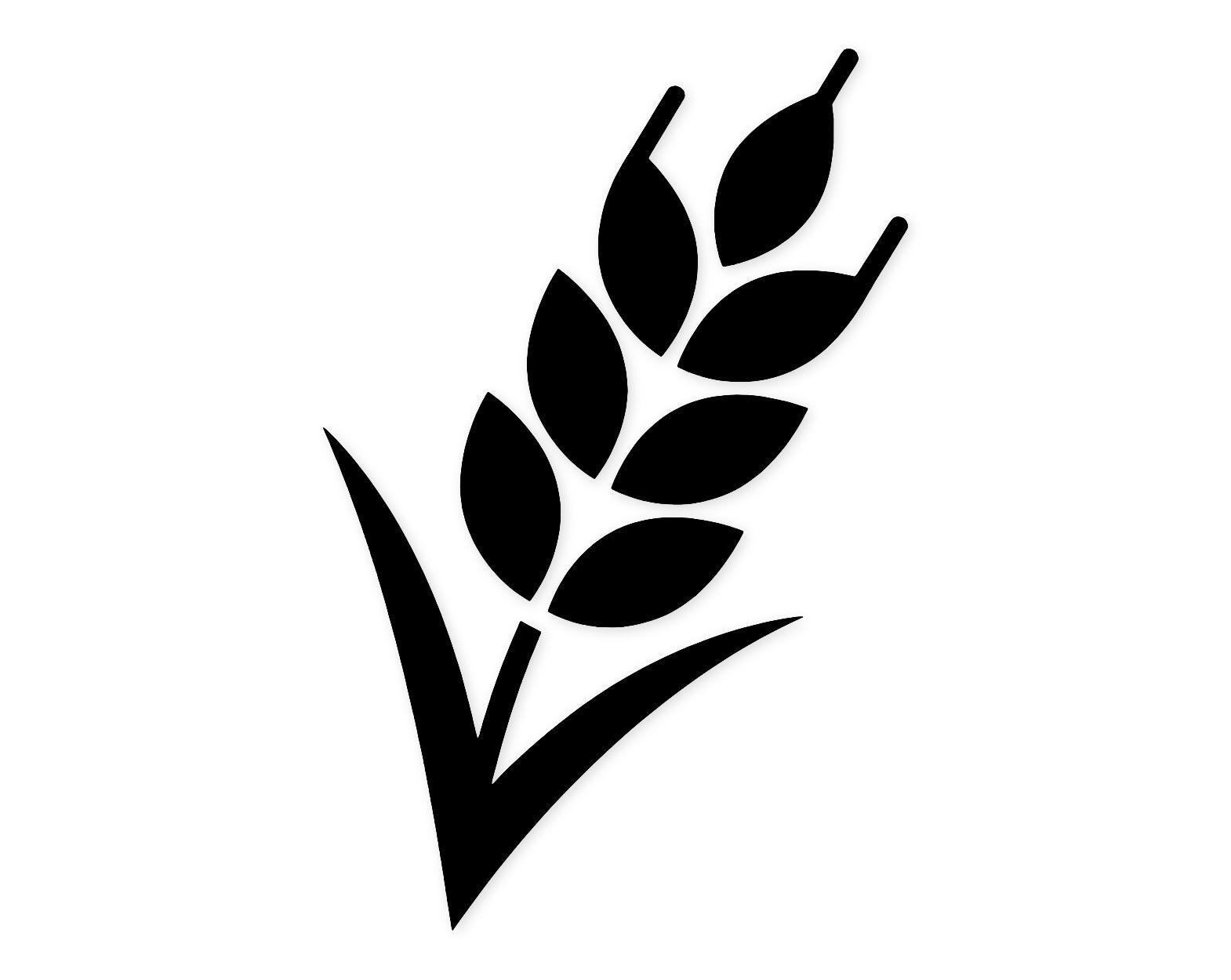
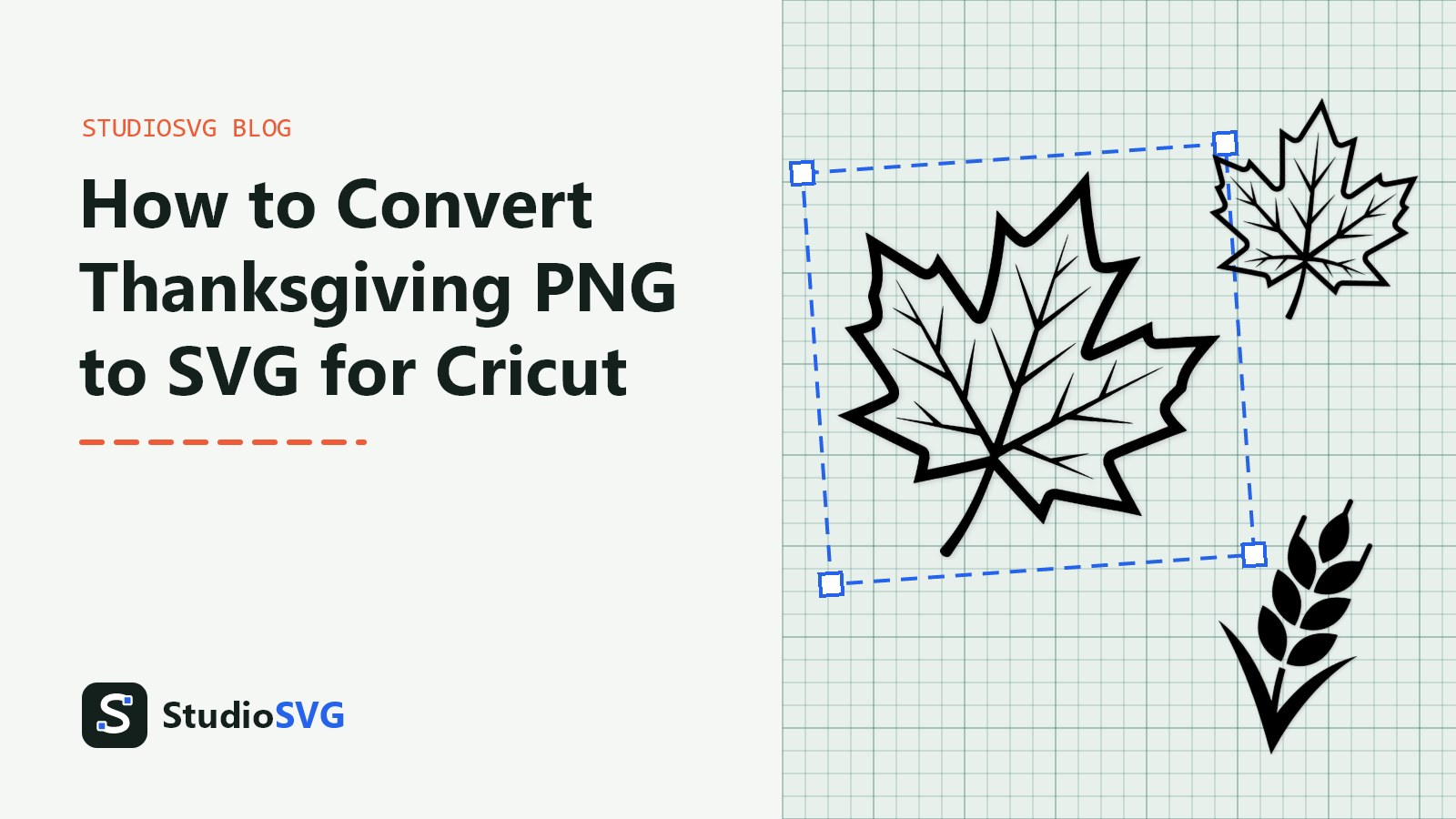
For instance, pairing a delicate nature motif like the Autumn Leaf Icon Svg Png: Cut Ready Digital Design For Cricut Silhouette with bold typography creates stunning place settings. If you prefer a stronger, more graphic look for wood signs or framed quotes, the Autumn Leaf Svg Png: Bold Outline Cut File For Crafting offers clean, thick lines that are remarkably easy to weed. To round out a harvest theme, adding the Wheat Stalk Svg Png: Bold Graphic For Cricut And Silhouette brings classic seasonal warmth to cloth napkins, table runners, and favor bags.
Frequently Asked Questions
Why do PNG files look jagged when I cut them on my Cricut?
PNG files are made of pixels. When your cutting software traces a pixel-based image, it follows the square edges of those pixels rather than a smooth mathematical path, resulting in bumpy and uneven cut lines.
What is the difference between a PNG and an SVG file?
A PNG is a raster image composed of a fixed grid of colored pixels. An SVG is a vector image composed of scalable points, lines, curves, and shapes that can be resized infinitely without any loss of clarity or smoothness.
Can I edit the colors of my SVG file after converting it?
Yes. Once your image is converted into an SVG and opened in your cutting software, you can select individual layers and change their colors to match your specific crafting materials and holiday color palette.
Do I need a commercial licence to sell items made with these files?
That depends on where you source your files. StudioSVG designs come with a commercial licence for physical products that you make yourself, allowing you to sell finished items at craft fairs or in your online shop.
Get Ready for Your Holiday Crafting Projects
Taking a few extra minutes to convert thanksgiving png to svg for cricut projects eliminates ruined materials, frustrating weeding sessions, and jagged edges. Whether you are creating festive decor for your own dining room table or preparing inventory for a small handmade shop, starting with clean, high-quality vector files sets you up for smooth crafting success all season long.