How to Use DXF Files in Silhouette Studio Basic Edition
StudioSVG Team · October 31, 2026 · 6 min read
If you downloaded a brand new cut file only to discover that standard vector art will not open on your screen, you are not alone. Many crafters want to use dxf files in silhouette studio basic edition without spending a dime on software upgrades. When you purchase digital files from StudioSVG, your downloads usually include multiple formats such as SVG, PNG, EPS, and DXF. While standard vector files are popular, the free tier of the software does not support them natively. Instead of letting your digital designs sit idle, you can rely on the Drawing Exchange Format file included in your download folder to get straight to crafting.
Whether you are making custom apparel, home decor, or paper crafts, understanding how to work with alternative file formats opens up your entire digital library. Let us walk through how these files work, how to load them into your workspace, and the best habits to ensure your machine cuts every line cleanly.
Why Silhouette Studio Basic Edition Limits Your File Options
The free tier of Silhouette software comes installed on thousands of desktop computers around the world. It is a capable program for designing basic text and shapes, but it restricts the import of standard vector files unless you purchase an upgraded software tier. This business model encourages upgrades, but it can catch beginners off guard.
If you try to drag and drop a standard vector graphic into the free software, you will likely see an error message. Many crafters assume they need to buy expensive software or turn to complex conversion tools. Before you look at upgrades or head over to the StudioSVG Image to SVG converter to remake your art, check your download folder. Almost every cut file package includes an alternative format built specifically for CAD and legacy cutting software.
Understanding DXF Files and Why They Work for Free
Originally created for computer-aided design software, the DXF format acts as a universal bridge for vector lines. Because the free version of the software permits open-source and CAD-based file types, it opens these files natively without requiring a paid license key.
Unlike pixel-based images that get blurry when you resize them, these alternative files retain clean vector paths. Your machine reads them as a series of connected points and straight or curved line segments. This means you can scale the artwork up for a large wooden porch sign or down for a delicate decal without losing any crispness along the edges.
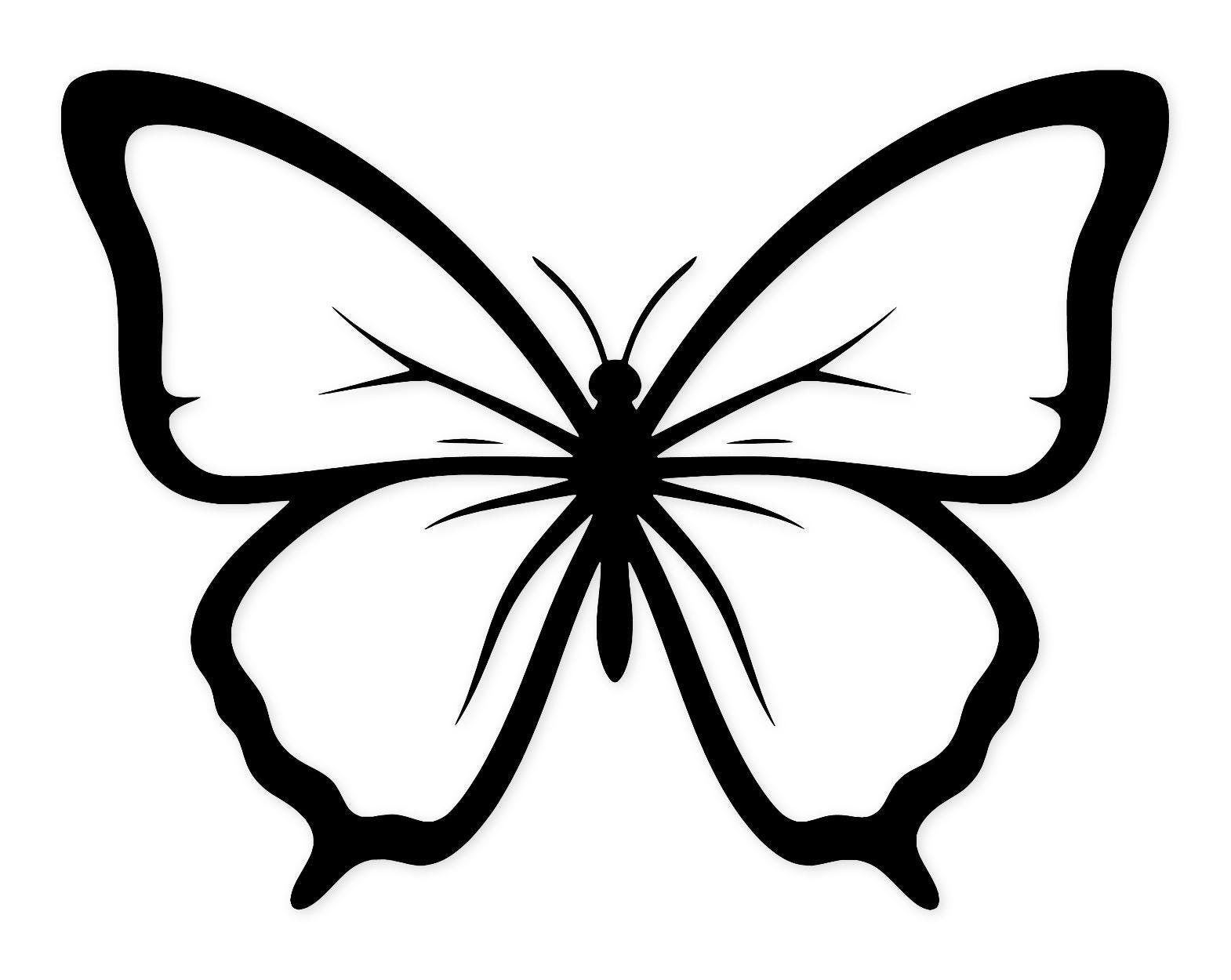
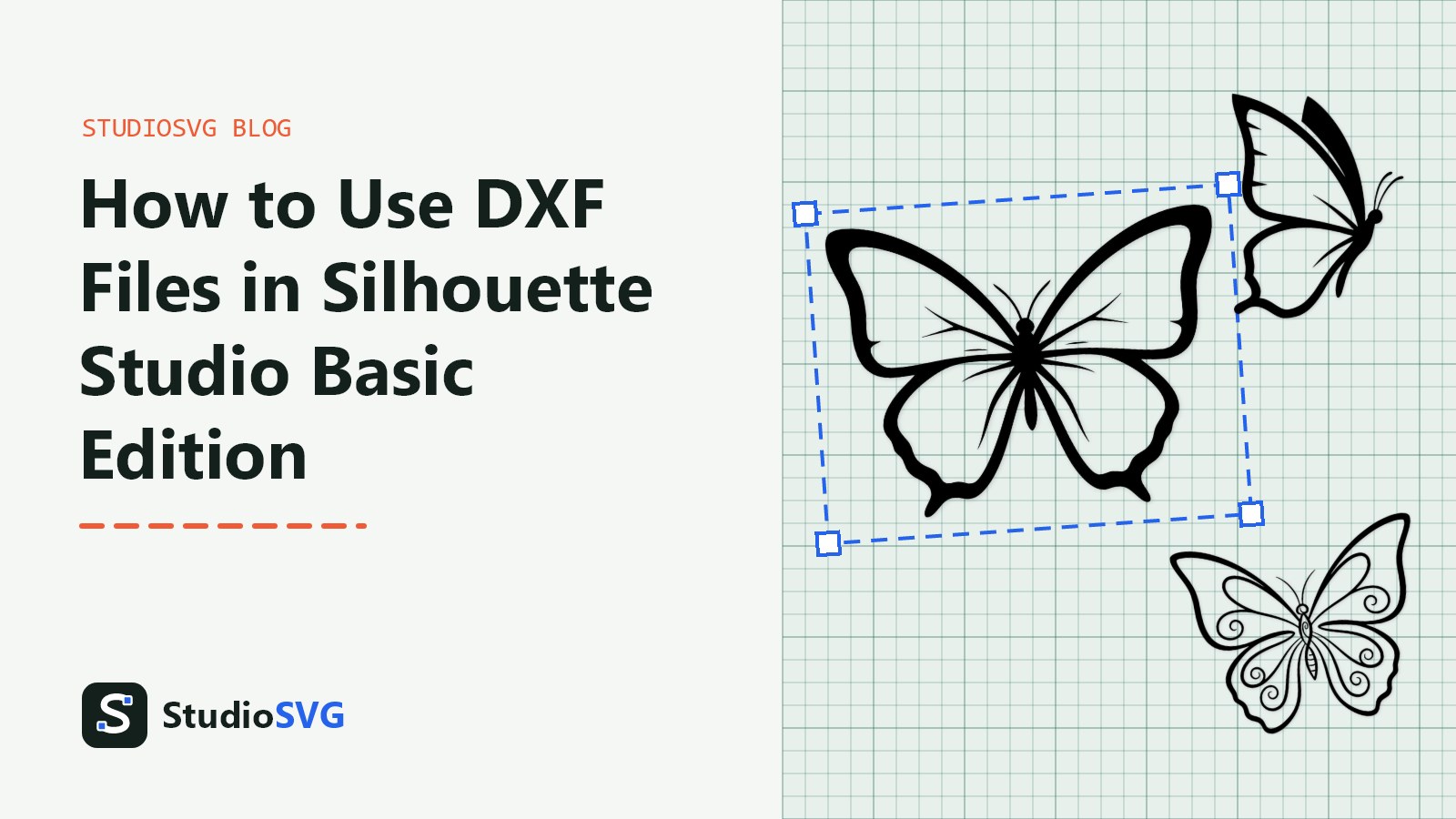
For example, if you grab the Classic Butterfly Svg Png: Bold Icon For Crafts, you will find the alternative format ready to use. The lines remain sharp and ready for cutting vinyl, cardstock, or stencil material as soon as you bring them into your workspace.
Step-by-Step Guide to Opening and Cutting DXF Files
Bringing your downloaded artwork into your workspace takes just a few clicks once you know where to look. Follow these steps to load your project and prepare it for your machine:
- Unzip your downloaded folder from StudioSVG on your computer desktop so you can easily access the individual files inside.
- Open your desktop cutting software and go to the top menu to select the open file option.
- Navigate to your unzipped folder and change the file type filter in the open window to display DXF files specifically.
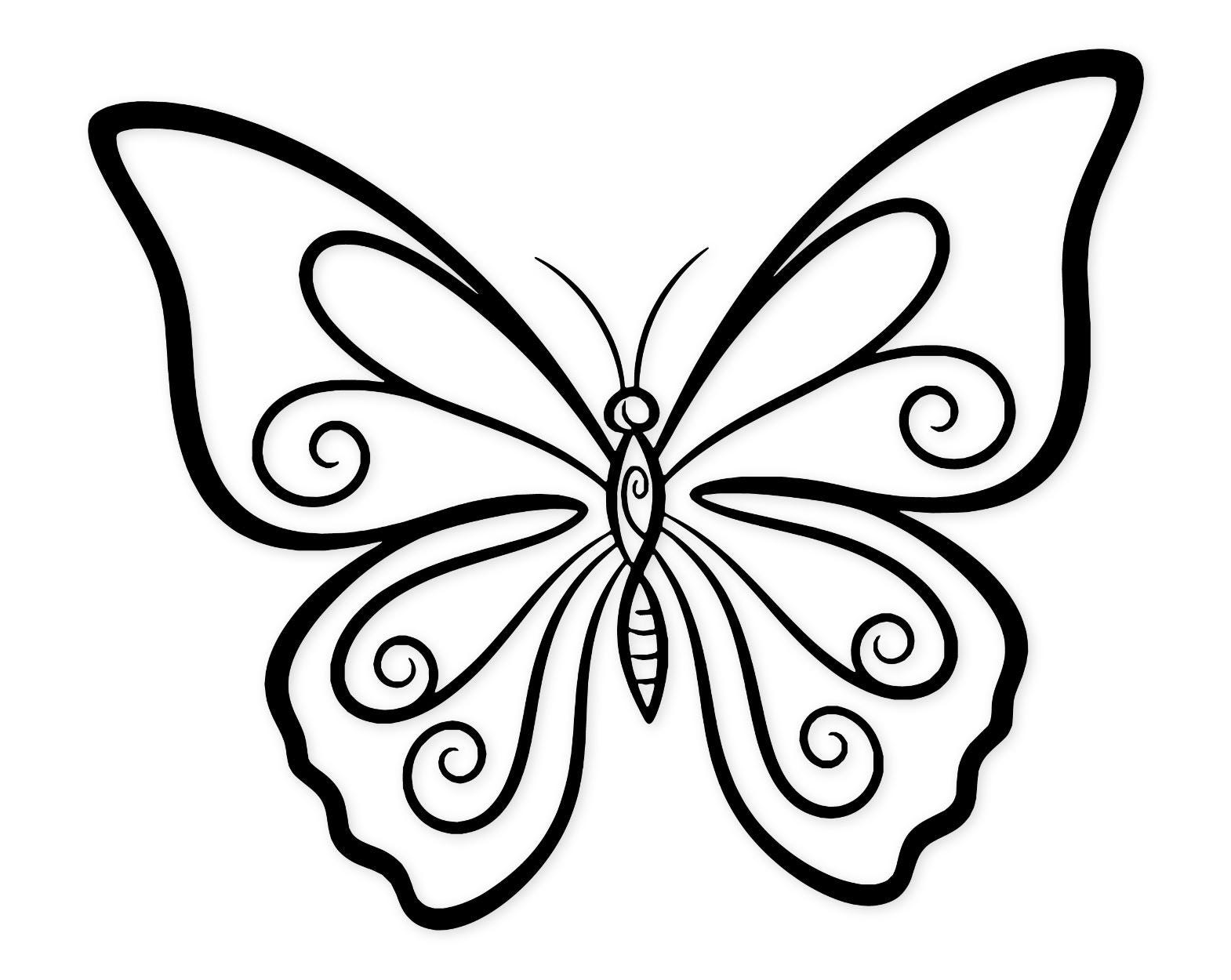
- Click on your design, such as the intricate Swirling Butterfly Svg Png: Bold High Contrast Cut Files For Crafts, and click open to drop it onto your virtual cutting mat.
- Select all parts of the design and group them immediately so the individual line segments do not shift apart while you adjust your layout.
For more details on how different digital formats compare when you are shopping for cut files, take a look at our guide on SVG vs PNG vs DXF vs EPS: Which Cut File Do You Need? to understand the technical differences.
How to Use DXF Files in Silhouette Studio Basic Edition Successfully
Working with alternative vector formats in the free software version requires a few adjustments compared to standard cutting workflows. Because these files are composed of individual line segments rather than a unified compound path, you might notice that complex designs import as dozens of separate pieces.
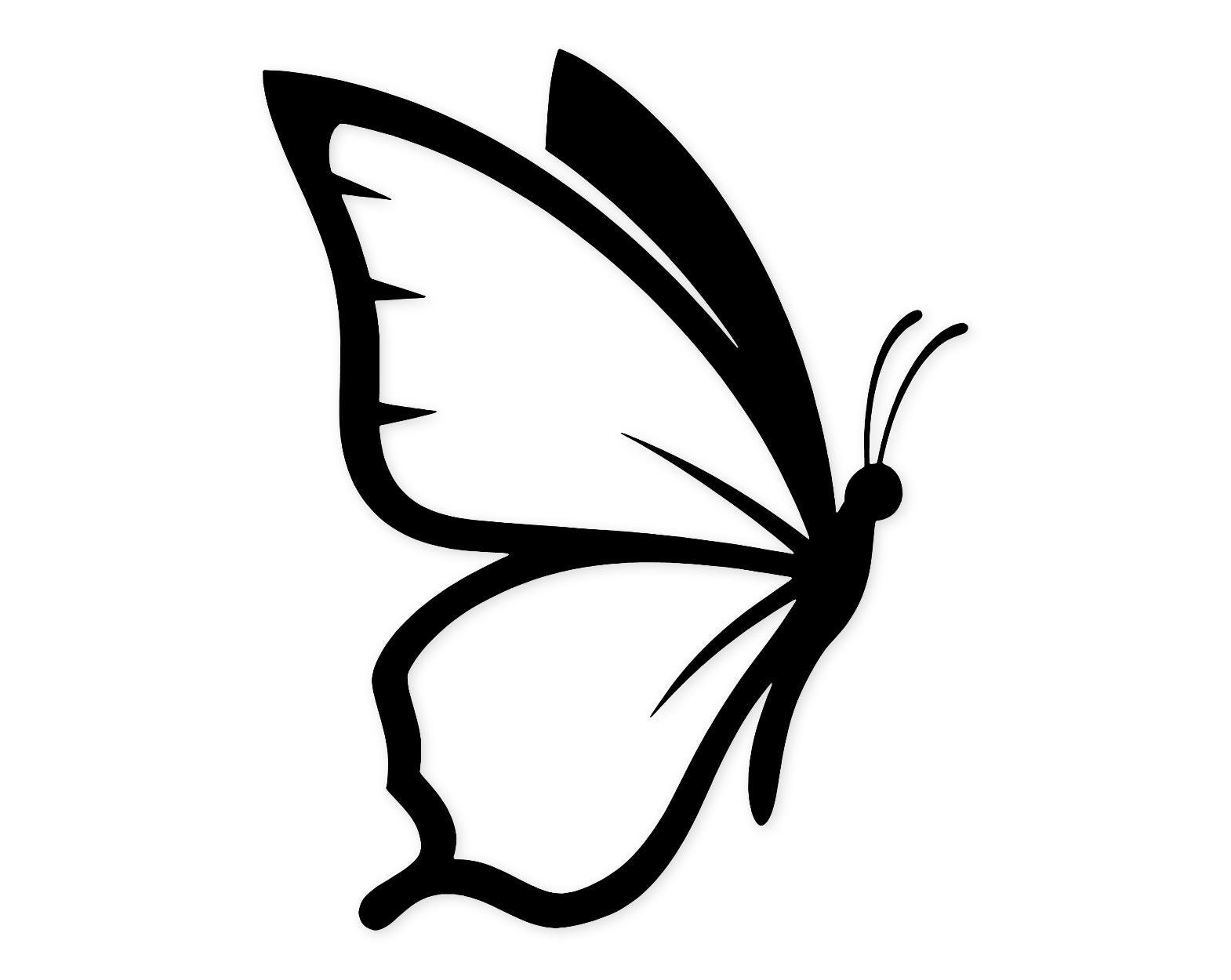
Before you send any project to your machine, always select your entire design and check the cut settings panel. Ensure that your cut lines are active and assigned properly to your blade. If your design features multiple layered elements, such as the bold lines found in the Majestic Butterfly Profile Svg Png: Bold Cut File For Crafting, you will want to select each color or section and weld or group them carefully before resizing.
If you love browsing nature-inspired vectors for your craft room, you can explore the full selection of designs in our dedicated Bees & Butterflies collection to find your next project.
Troubleshooting Common DXF Import Quirks
Even though these alternative files save you from buying software upgrades, they can occasionally exhibit minor quirks upon import. Knowing how to fix these small issues will save you time and frustration at the craft table.
Why is my design importing as thousands of tiny disconnected line pieces?
This happens because the format translates vector paths into individual drafting vectors. To fix this, select the entire design on your mat, right-click, and select make compound path. This tells the software to treat the interior cutouts and exterior outlines as a single cohesive object rather than random stray strokes.
Why are my cut lines doubling up?
Sometimes legacy export settings can cause overlapping vector lines. Zoom in close to your design on the screen. If you see parallel lines running right on top of each other, use your point editing tool to delete the redundant path, or check your software cut settings to ensure your blade only passes over the material once.
Why is my design massive or microscopic when it opens?
Drafting software measures units differently than standard design programs. Do not panic if your butterfly or floral motif fills up the entire screen or looks like a tiny dot. Simply highlight the design, open the scale panel, check the maintain aspect ratio box, and type in your desired physical dimensions in inches or centimeters.
Frequently Asked Questions
Can I cut heat transfer vinyl using these alternative files in the free software?
Yes. Once you import the design, group the elements, and resize your artwork, remember to mirror your design if you are using heat transfer vinyl. Send the job to your machine just like you would with any other cut file.
Do I need an internet connection to open these files in my software?
No. Once you download your files from StudioSVG to your computer and unzip them, you can open and edit them offline inside your desktop cutting software without needing an active web connection.
Will my commercial license still apply when using these files?
Absolutely. Every design purchased from our shop includes a commercial license for physical products you make yourself, regardless of whether you open the standard vector version or the alternative format in your software.
Can I resize these files without losing cut quality?
Yes. Because these files are vector-based, you can scale them up for large wall decals or down for tiny minimalist stickers without any pixelation or loss of edge definition.
Conclusion
Working with the free version of your cutting software does not mean you have to miss out on beautiful digital designs. When you take advantage of the alternative vector formats included in your downloads, you can easily use dxf files in silhouette studio basic edition to create stunning handmade goods. Take a moment to check your download folders, group your paths properly, and get back to making things you love.