How to Upload an SVG to Cricut Design Space from Phone
StudioSVG Team · November 1, 2026 · 6 min read
Why Use Your Phone for Cricut Design Space
Crafting with a cutting machine used to mean being tethered to a desktop computer, but learning how to upload an svg to cricut design space from phone opens up a whole new level of creative freedom. Whether you are sitting on the couch scrolling through new project ideas or prepping quick decals away from your craft desk, handling your files entirely on your mobile device keeps your workflow fast and flexible. You do not need to boot up a laptop just to send a quick cut to your machine.
When you download digital cut files from StudioSVG, your instant download includes clean vector files ready for immediate use. While desktop software gets plenty of attention, the Cricut mobile app for iOS and Android handles vector graphics beautifully once you know where your device stores downloaded folders. Skipping the computer step saves you time and lets you jump straight from inspiration to cutting.
Before you begin, make sure your mobile app is fully updated to the latest version through your device app store. Older app versions sometimes struggle with file management permissions or compressed folders. With a fresh app installed, you are ready to bring your favorite digital designs right to your mobile canvas.
Step-by-Step Guide on How to Upload an SVG to Cricut Design Space from Your Phone
Getting a vector file from your mobile browser onto your cutting canvas is straightforward once you follow the correct sequence. Because file managers differ slightly between Apple and Android operating systems, knowing the exact in-app pathways prevents frustrating dead ends.
- Open your mobile web browser, log into your StudioSVG account, and download your chosen cut file directly to your phone storage.
- Locate the downloaded ZIP folder in your Files app (iOS) or My Files app (Android) and tap it to extract or uncompress the contents. Keep a mental note of the folder location.
- Open the Cricut Design Space app on your phone and start a new project on your canvas.
- Tap the Insert Image icon at the bottom of the screen, then choose Browse or Upload from Files.
- Navigate to the folder where you extracted your download and select the file ending in .svg. Avoid choosing the PNG or JPG versions if you want crisp, scalable lines without background cleanup.
- Give your uploaded graphic a recognizable name, tag it if you like, and save it to your cloud library.
- Select the newly uploaded graphic from your uploaded images library and tap Insert to place it directly onto your mobile canvas.
Finding and Downloading Your Cut Files on iOS and Android
The trickiest part of mobile crafting is often finding where your phone automatically stashes downloaded items. On an iPhone or iPad, Safari usually drops downloads into the Downloads folder inside the iCloud Drive or On My iPhone section of the native Files app. If your purchase arrives as a ZIP folder, simply tapping it automatically creates a blue folder right next to it containing your SVG, PNG, and other file formats.
Android users will want to open their device file manager and check the default Downloads category or internal storage directories. If your phone tries to open the SVG code as a text document instead of letting you select it in the app, do not panic. The file is completely fine; you simply need to initiate the upload from inside the Design Space app using the browse function rather than trying to open the file directly from your file manager.
If you ever need to quickly turn a flat reference picture into a clean vector while browsing on your mobile browser, you can visit the Image to SVG converter to generate mobile-friendly cut files on the fly.
Troubleshooting Common Mobile Upload Roadblocks
Even with a streamlined process, you might occasionally run into minor speed bumps when handling vector files on a smartphone or tablet. The most common hiccup is attempting to select a compressed ZIP file directly inside the design app. Design Space cannot read a zipped archive; it needs the unzipped individual files inside. Always ensure you have tapped the ZIP folder first to unpack its contents before opening the app.
Another frequent issue involves file format confusion. If your screen shows a blank thumbnail or treats your vector like a flat photo with a white background, you likely selected the PNG instead of the SVG. SVGs preserve individual cut paths and transparent backgrounds, making them the superior choice for layering and multi-color projects.
For a deeper dive into why file types matter for different cutting techniques, take a moment to review this helpful guide on SVG vs PNG vs DXF vs EPS: Which Cut File Do You Need? to make sure you always pick the best option for your materials.
Preparing Your Mobile Project for the Mat
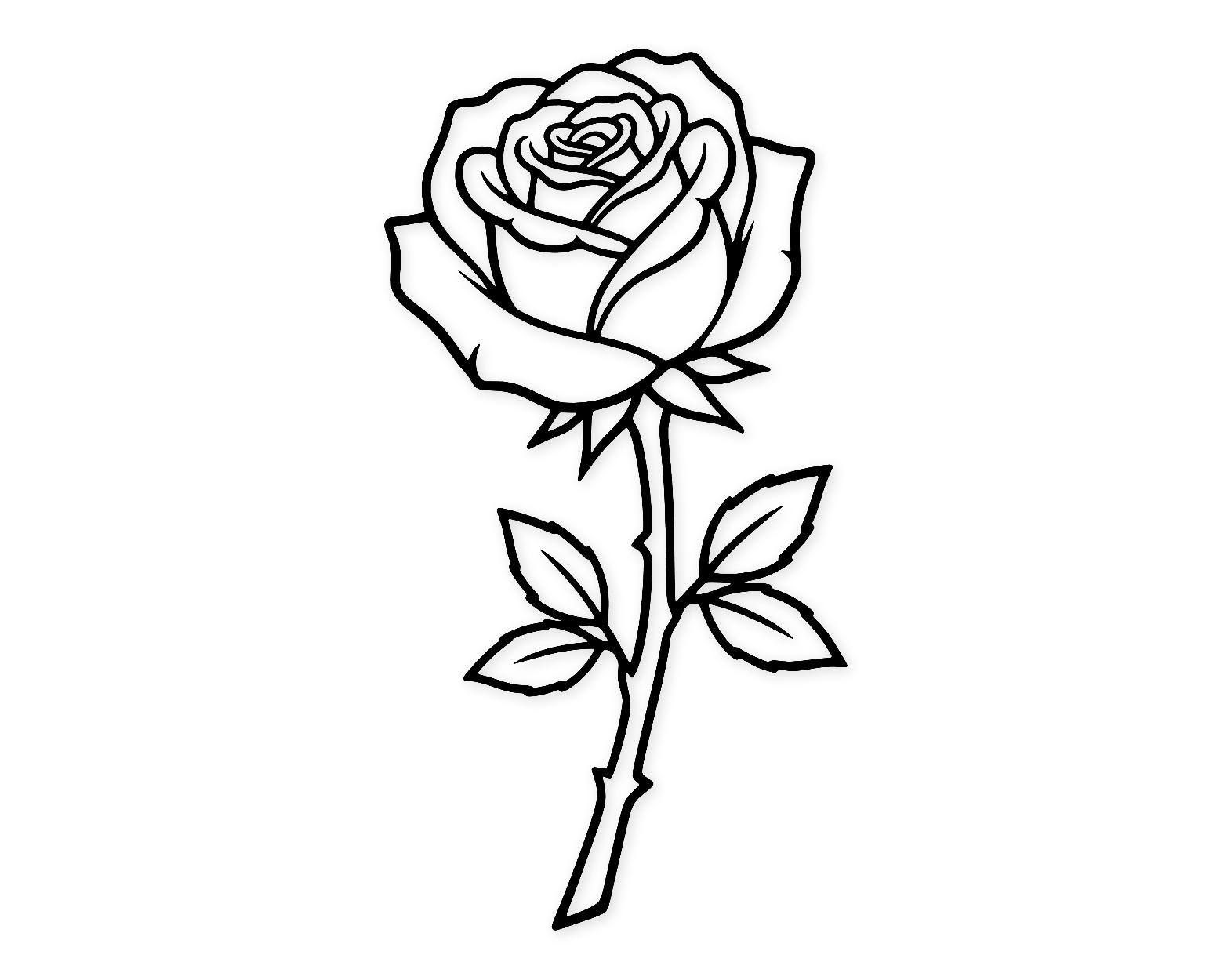
Once your graphic is safely loaded onto your mobile workspace, you can start sizing, duplicating, and arranging your elements just like you would on a desktop computer. Use two fingers to pinch and zoom on your screen to inspect intricate details, especially on delicate floral work like the Classic Rose Svg Png: Bold Clean Line Art For Craft Projects, which features clean lines that look stunning on handmade cards and vinyl decals.
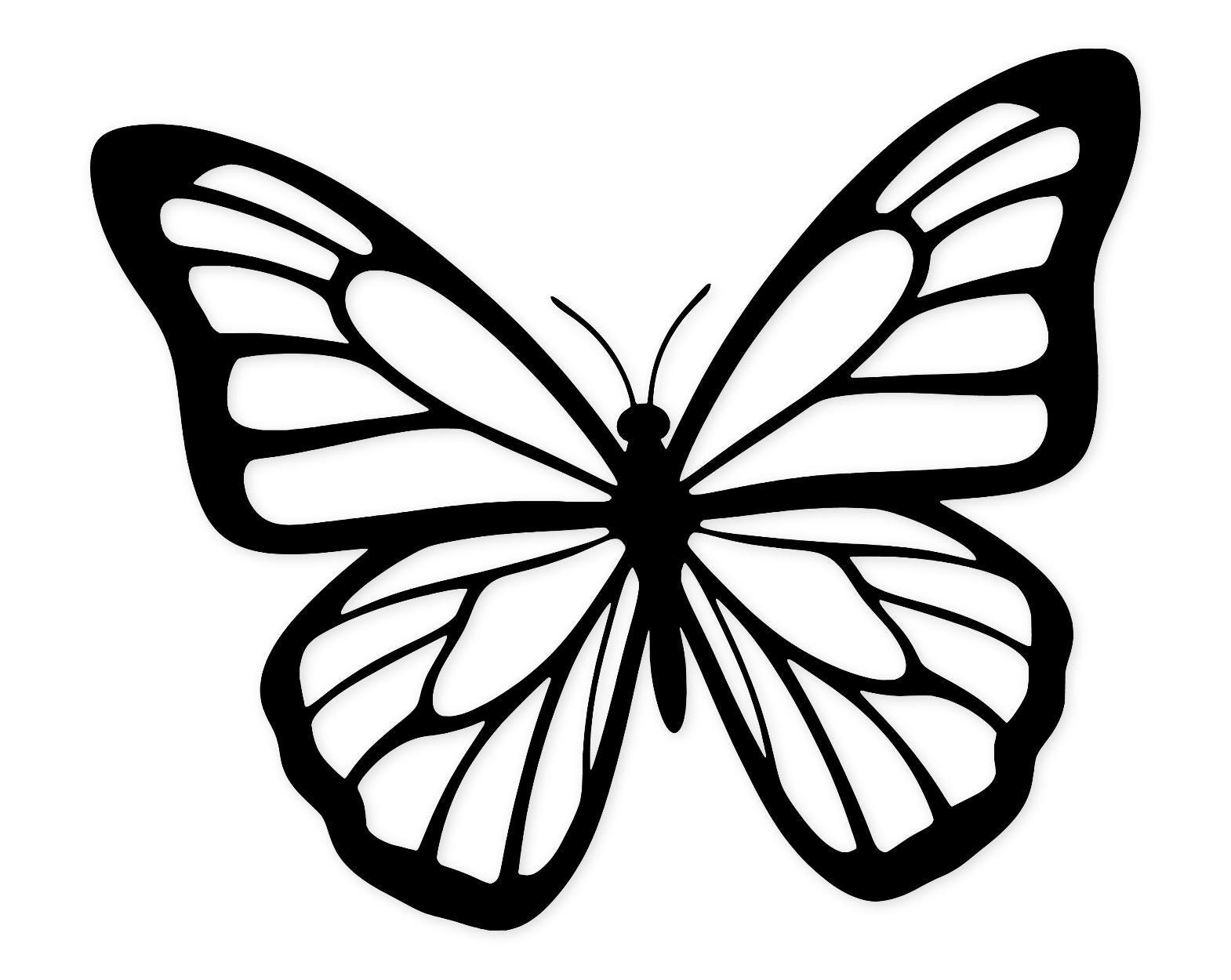
If you are crafting gifts for loved ones, minimalist aesthetics work wonderfully for quick mobile projects. The Butterfly Svg Png: Minimalist Design For Friendship offers clean single-layer cuts that weed in seconds, making it an ideal choice when you are testing out new vinyl scraps or working on your phone away from your main craft supplies. You can also explore more inspiration by browsing through the entire collection of Bees & Butterflies cut files for your next nature-inspired project.
Frequently Asked Questions
Can I upload SVG files directly from Dropbox or Google Drive to my phone app?
Yes. If your files are stored in a cloud service, you can access those cloud drives directly through the browse menu within the mobile app's upload screen, bypassing the need to download them to local device storage first.
Why does my SVG appear as a solid black square on my mobile canvas?
This usually happens when a multi-layered design imports with all layers grouped and filled with a default dark color. Simply select the design on your mobile canvas and use the ungroup tool to separate the individual paths and adjust their colors.
Do I need an active internet connection to upload files on my phone?
Yes, the mobile app requires an internet connection to upload new images to your cloud library and to sync your project canvas changes to your account.
Can I use DXF files from my phone instead of SVGs?
While some software apps support DXF formats, the Cricut mobile app is specifically optimized for SVG and PNG files. For the smoothest experience on mobile, stick with the SVG files included in your download folder.
Start Crafting From Anywhere With Your Phone
Mastering how to upload an svg to cricut design space from phone opens up endless opportunities for portable crafting. Whether you are prepping a striking piece like the Open Wings Butterfly Art Svg Png: Cut Ready Digital Design For Cricut Silhouette or working on detailed botanical arrangements from the Flowers & Plants section, managing your downloads on iOS and Android keeps your creative momentum going wherever you happen to be.